
Who should see which data in Power BI?
A report link and permission to see its data are different concerns. Use a branch-manager example to plan roles, restrictions and pre-release checks.
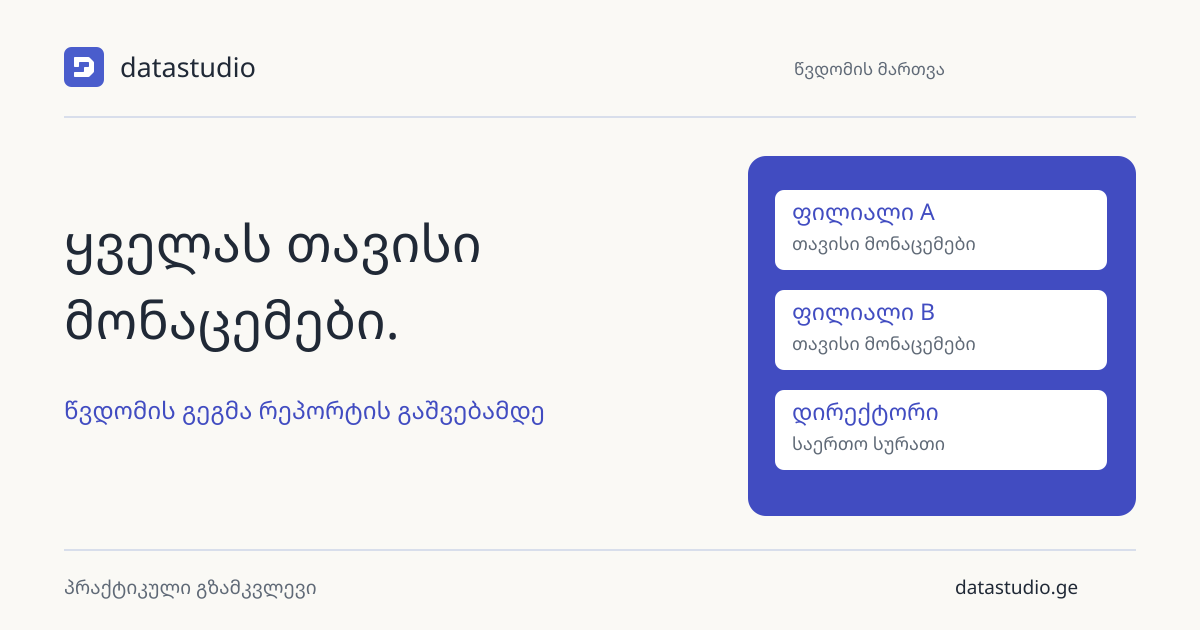
Start with people and data
List who will use the report and which data each person needs for their work. A branch manager may need local sales, finance may need company-wide amounts and a director may need an overall view. This is an example, not a universal access policy.
Separate viewing from editing and redistribution. Helping build a report does not automatically justify permanent access to every dataset.
A filter is not an access rule
A preselected branch filter is convenient, but it does not enforce access protection. Row-level security, or RLS, restricts rows according to defined roles. Workspace roles also matter: restrictions applied to Viewers do not apply in the same way to workspace Admins, Members or Contributors.
Do not give a branch manager an editing role merely for convenience. Check the model’s rules together with workspace and report permissions.
Test roles with realistic scenarios
Build a test matrix with the user, permitted branch, expected result and actual result. Test one branch, multiple branches, a new employee and someone whose access should end. Checking only through an administrator’s account is insufficient.
Review export and sharing requirements separately. What can a user download? What happens when they move to a different team? Define the default behavior for an unrecognized user as well.
Treat access as an ongoing responsibility
People and responsibilities change. Name who authorizes access, who updates it and when the list is reviewed. Keep public demonstration reports separate from internal reporting; do not put confidential customer or employee data into a public sample.
When planning a project with DataStudio, an access matrix is as useful as a list of measures. Preparing it early helps define how the finished report will be used and maintained.